🕒 Schedules
Schedules allow you to automatically run executions or technical tasks at a defined time or interval. This is useful for setting up regular test runs, automating health checks, or triggering important workflows without manual intervention.
🔁 What Can Be Scheduled?
You can schedule the following:
- Test Executions (DB, DQ, Custom, Reconciliation)
- DAG Workflows
- Group Executions
- Technical Tasks (e.g., metadata sync, profiling)
📅 Creating a Schedule
You can create a new schedule from two places:
- During execution setup — via the "Schedule" option at the final step of any execution configuration.
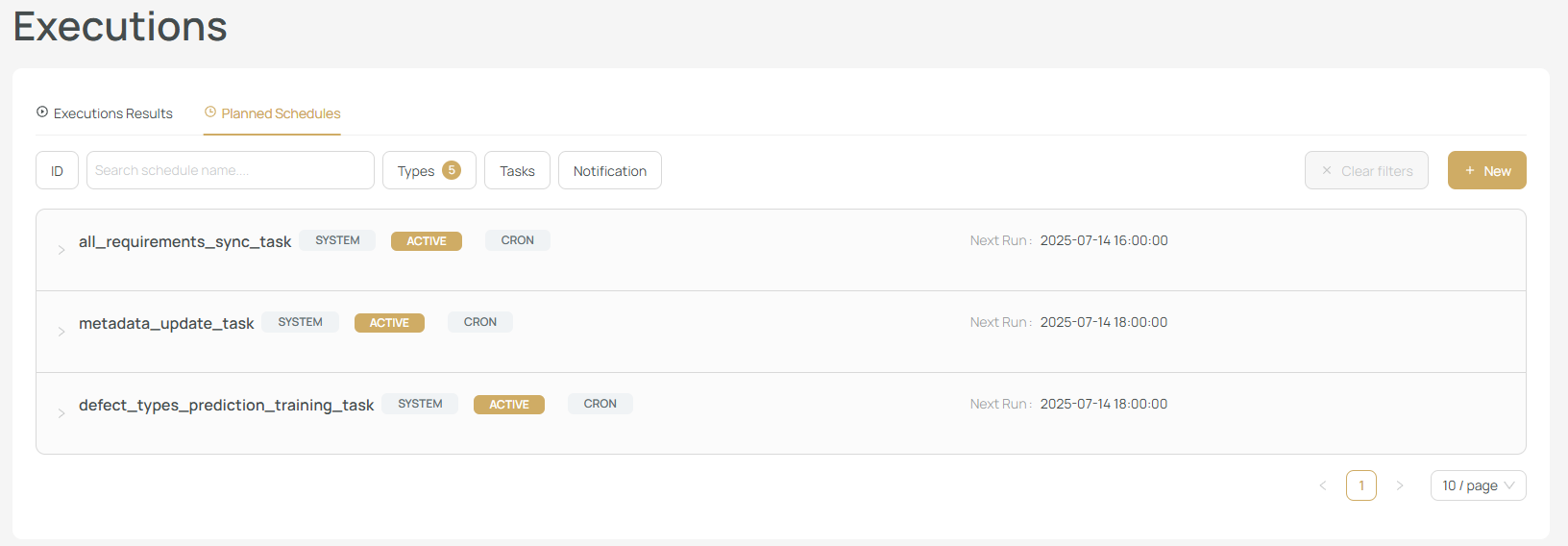
- From the Scheduler tab — go to
/results#schedulerand click+ Newto open the schedule creation dialog.
⚙️ Schedule Types
Schedules can be one of two types:
| Type | Description |
|---|---|
| Recurring | Executes at defined intervals (e.g., daily, weekly, monthly). |
| One-Time | Executes once at a specified date and time. |
🧑💻 User-Defined vs System Schedules
- User-defined schedules: Created manually by users. You can pause, edit, rename, reschedule, or delete them.
- System schedules: Created automatically by X-AutoMate for background tasks. These cannot be deleted but are visible in the scheduler for transparency.
🛠 Managing Schedules
All schedules can be managed from the Scheduler tab at /results#scheduler. There you can:
- View all scheduled executions
- Pause or resume individual schedules
- Edit or reschedule tasks
- Delete outdated or unused schedules
- Rename for better organization
⚠️ Warning
Be cautious when editing schedules tied to critical production tasks.
Scheduling is a powerful feature that lets X-AutoMate work for you — even when you're not around. Use it to maintain regular testing habits, enforce SLAs, and increase confidence in your pipelines.